API keys
API keys are your account's credential for the Leadgram API. Manage them from Settings: create a key, give it a name, grant it rights, and revoke it when you're done. Here's what a key can and cannot do, how to create one, how to grant it permissions, how to send an event with it, and how to rotate or revoke it.
What API keys are for
An API key lets an external tool or script report conversions to Leadgram on your behalf, without sharing your login credentials or session cookie. It's built for server-to-server integrations: an affiliate network, an advertiser's CRM, or your own script fires an event at the moment of the deposit, instead of a human clicking around the dashboard. It isn't meant for browser use.
A key opens three surfaces, not one. It reports conversions to POST /api/events; it reads two versioned endpoints, GET /api/v1/clicks for the click feed and GET /api/v1/report for the funnel summary; and it answers on POST /api/mcp, the MCP endpoint an AI host connects to in order to call Leadgram's 25 named tools. The reading endpoints and the MCP endpoint take the key and nothing else - a dashboard cookie is not accepted there. Their parameters, response shapes and status codes are in the API reference; this page is about the key itself.
Create a key
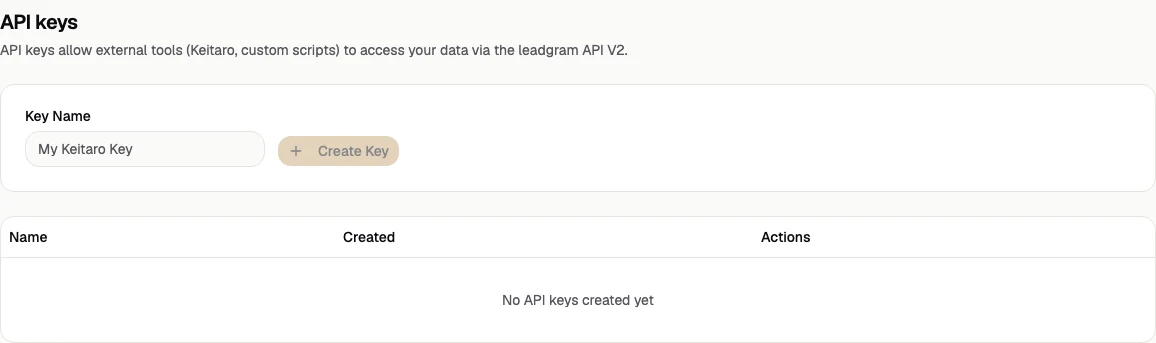
- Open Settings → API keys.
- Give it a name you'll recognize later, e.g. "Keitaro" or "reporting script" (that's the only field the form takes).
- Click Create Key. The secret is shown exactly once, right after creation, in a copy box, so copy it now. Neither the keys table nor any endpoint will show the full value again; only the name and creation date persist.
What a key can and cannot do
A key is tied to your account and acts inside one organization, but it is not full dashboard access:
- Out of the box it can send events to
POST /api/events, and only for as long as the key has never had permissions saved. That is a compatibility exemption for integrations that were wired up before permissions existed, not a default setting: it covers the HTTP endpoint alone, never/api/mcp, and it ends the first time you save permissions for that key. - It can be granted reading reports and the click feed, which is what opens
GET /api/v1/reportandGET /api/v1/clicks; creating campaigns, offers, landings, funnels and Click Flows, plus accepting conversions, plus switching status - which exists for offers and landings (archive and unarchive) and for Click Flows (take off traffic, archive) only, because campaigns and funnels have no status right at all; and, as a separate tier, rewriting and deleting all of those, publishing a flow into live traffic, recording ad spend, and creating, editing and deleting postback rules. Every right is granted to a specific key, is bound to one organization, and is off by default on every key, including one you create today. - No right grants bots and their tokens, channels, ad accounts, subscriber broadcasts, billing and top-ups, teammates, organization deletion, password or email changes, session revocation, custom domains, postback test fires, test events fired into an ad account, re-sends of a delivery, or the permission editor itself - a key able to widen its own rights is an account takeover, not a feature. A key-authenticated request to
/api/auth/*always answers403, no matter what its owner is allowed to do in the browser.
Which organization a key writes into depends on whether it has permissions. Permissions name one organization, and once they're saved that's the only one the key touches. A key with nothing granted names none, so it falls back to the owner's earliest live membership - not the organization that was active in your browser when you created the key. On a single-organization account those are the same thing. If you belong to more than one, open Permissions on the key right after creating it and pick the organization explicitly, otherwise the events land in your oldest one and the reports that move are the reports there.
There's no per-teammate permission split in the current UI: if several people or systems need integration access, mint a key per integration so you can tell them apart in the table and revoke exactly one without breaking the others.
Granting permissions
Rights are granted per key, in a dialog of their own:
- Open Settings → API keys and click Permissions on the key's row.
- Pick the Workspace - that's the dialog's word for your organization. The key works only in the one you select here, and nothing can be saved until you do.
- Tick what the integration needs under Read, Write and Delete and irreversible. Nothing is ticked on a new key.
- The irreversible tier stays locked until you type
DELETEin the confirmation field below it, and only for a right you are ADDING - unticking one the key already holds needs no confirmation. That's a deliberate speed bump, not a captcha: it is the tier that rewrites payout URLs and deletes rules. - Optionally restrict the key to named campaigns under Campaigns; the default is every campaign in the organization.
- Click Save permissions; the Currently granted block shows the result. Revoke all permissions empties all three tiers again, and it takes conversions with them: an emptied key holds nothing at all,
eventsincluded, and it does not go back to the state of a fresh key, which still accepts them.
Each checkbox prints its machine slug next to the label, and that same slug is what the API names back at you in a refusal, so it's worth knowing which is which:
- Read:
report,clicks. These two openGET /api/v1/reportandGET /api/v1/clicksrespectively, and nothing else - the key still can't read the event feed or anything under/api/auth/*. - Write:
campaigns,offers,offers:status,landings,landings:status,funnels,click-flows,click-flows:status,events. - Delete and irreversible:
campaigns:update,campaigns:delete,offers:update,offers:delete,landings:update,landings:delete,funnels:update,funnels:delete,click-flows:update,click-flows:delete,click-flows:publish,postbacks,postbacks:update,postbacks:delete,ad-spend.
Every one of those rights works over HTTP, and all but one are also reachable as an MCP tool: click-flows:update has none, because no endpoint lets a key read a flow graph first, so the only move left for a conversational client would be overwriting one blind. Note also that the MCP tool catalog isn't filtered by what a key holds - a connected host is shown all 25 tools and learns what this key is missing when it calls one, from a 403 that names the slug to grant.
The tier names describe consequences, not HTTP verbs. The irreversible tier holds offers:update and landings:update because both replace the row wholesale and both carry the external URL your live traffic lands on; it holds postbacks (creating a rule) because a created rule fires at an address of your choosing on every future conversion; and it holds click-flows:publish because publishing is what puts a flow in front of real visitors. Write is not the "reversible" tier either: its worst branch is events, and accepting a conversion spends the organization's balance and forwards the event to a connected ad account, neither of which can be taken back.
The first save is where a working integration can break. Until a key has permissions saved, it accepts conversions on the compatibility exemption described above. Saving permissions ends that exemption permanently, so if events isn't ticked in that first save, POST /api/events starts answering 403 for an integration that worked a minute earlier. The dialog warns about it before you save; tick events explicitly whenever you grant a key anything else.
Two more things the dialog does that are easy to miss. A save replaces all three tiers with what's ticked at that moment - there's no "add read, keep delete as it was", so re-tick everything the key still needs before saving. And a campaign restriction can't be combined with a right that is organization-wide by nature: offers and landings in full, creating and renaming funnels, and rewriting a flow graph (click-flows:update) aren't owned by a campaign, so a grant mixing them with a campaign restriction is refused at save time with 400 grant_scope_unsupported_resource, naming the right that blocks it, instead of silently applying to everything later. Deleting a funnel is not in that group - funnels:delete takes the restriction like the campaign-owned rights do. Read rights are not checked against it at all, and the restriction reaches them for real: report and clicks return the picked campaigns only.
Rights are checked on every call, not frozen at grant time. If the key's owner stops being an owner or admin of that organization, every request made with the key answers 403 role_forbidden even though nothing about the key itself changed - re-issue the key under an account that still manages the organization. The one exception is dated: a key issued before 2 September 2026 skips the role check on POST /api/events over HTTP entirely, so it keeps accepting conversions after its owner is demoted, and the only fix there is to delete that key and issue a new one.
Sending an event: POST /api/events
The key travels on the x-api-key header:
curl -X POST https://leadgram.org/api/events \
  -H "x-api-key: YOUR_API_KEY" \
  -H "Content-Type: application/json" \
  -d '{
    "clickId": "tz4k9m2p1xq7v0b3n8s6d5fg",
    "type": "deposit",
    "payout": 42.50,
    "nonce": "crm-conversion-8813",
    "payload": { "telegram_user_id": 123456789 }
  }'
Body fields:
clickIdis required. The click id Leadgram issued, i.e. the value that reached you through the{click_id}macro in an offer URL, a campaign redirect, or a landing. A click belonging to another organization won't do.typeis required, one of:click,land,bot_start,channel_join,join_request,first_dm,miniapp_launch,lead,registration,deposit,ftd,purchase,subscription_renewed,subscription_cancelled,custom_1-custom_8. Accepting a type is not the same as producing it:click,landandfirst_dmhave no producer inside Leadgram and exist only because you send them, whilebot_start,channel_join,join_request,miniapp_launch,purchaseand the twosubscription_*types already have a producer inside Leadgram - send those yourself and you get a second event beside the automatic one.bot_startis the one exception, and it is conditional: your report collapses onto the existing start only when it carries the Telegram user id inpayload(missing it is a 422,bot_start_missing_telegram_user_id) and something in the request can name the bot the user started -payload.bot_usernameorpayload.bot_idif you send one, otherwise the bot behind theclickId. A click from a plain redirect campaign, or one whose bot has been deleted, names no bot, so a report that also omitsbot_username/bot_idis written as its own separate event. That does not cost you a second charge - Leadgram bills once per person per workspace, and a Telegram user id matches that person every time, so the duplicate is free - but it does put a second Lead into Meta under a differentevent_id, which no deduplication can collapse and which teaches your campaign optimizer that one person converted twice. See Events and conversions.payoutis optional. The payout for this conversion: a number between 0 and 1,000,000 (a string like"42.50"is accepted too, negatives are rejected). Omit it and the conversion inherits the Payout of the offer attached to the click.nonceis optional, 1 to 128 characters. It's the idempotency key: the event id is derived fromclickId+type+nonce, so resending the same request never writes a second row and never double-fires the charge, the postbacks, or the ad-platform conversions. The flip side is that two genuinely different conversions on the same click (a second deposit) must send a differentnonce. Instead of the field you can send anIdempotency-Keyheader, which is picked up as a fallback source for the same value.payloadis an optional free-form object, but three keys inside it are read specifically.telegram_user_idis the one billing and per-user postback dedupe key on.bot_usernameandbot_idapply tobot_startalone and say which bot the user actually started - the @name (with or without the@), or Leadgram's internal bot id. Both are optional and worth sending as soon as you run more than one bot: without either, the pairing falls back to the bot behind the click, which is a guess and is wrong whenever that click came from a campaign fronting a different bot. A name that is not one of your bots answers403instead of quietly falling back to the guess.
A successful call answers 201 with the created event row. A refusal carries a machine-readable code and a human hint in the body wherever it can, so log both fields rather than the status alone:
400- the body failed validation, or it isn't parseable JSON.401- the key was sent and not accepted: unknown, revoked, disabled or expired. A request carrying nox-api-keyheader at all never reaches this check: without the header it is treated as a cookie request, and a mutating cookie request with noOriginis turned away earlier with403and the bodyCSRF: Origin header required for mutating requests.403- several different refusals, told apart bycode. With nocodeat all, the click wasn't found or belongs to another organization (abot_usernamethat isn't one of your bots lands here too).campaign_scope_forbiddenmeans the key is restricted to named campaigns and this click sits outside them.api_key_write_not_grantedmeanseventsisn't granted to this key, and thehintnames the slug to tick (routes in the irreversible tier answerapi_key_delete_not_grantedinstead, so the two are never confused).role_forbiddenmeans the key's owner is no longer an owner or admin of the organization.409- the organization was deleted (org_deleted), or another request with the sameIdempotency-Keyis still in flight (that second one carries nocode).413- the JSON body is over 1 MiB.429- you've spent the endpoint's budget of 1800 requests per minute per organization. Wait out theRetry-Afterheader.503withRetry-After: 60- Leadgram couldn't reach its rate limiter, and requests made with a key fail closed rather than through. The event was not recorded. Retry after the delay with the samenonce: a repeat carrying the same nonce is the safe retry, because it can only ever produce one event row. If you also send anIdempotency-Keyheader, a request that outlives its 55-second budget answers504with the same meaning and the same fix.
Rotate and revoke
There's no in-place "regenerate": a key's secret is fixed for its lifetime. To rotate one, create a new key first, swap it into your integration, confirm events still land, then revoke the old key from the table so nothing keeps running on it. Revoking is immediate: click Revoke on a key's row and it stops working right away, with no grace period, so do the swap before the revoke, not after.
Common pitfalls
- The secret is shown once, at creation. Close the dialog before copying it and it's gone for good; revoke the key and create a new one.
- A key writes conversions into one of your organizations, so a leaked key means someone else's events in your analytics and your billing. What else it can do depends on the rights granted to it, so grant the narrow ones: a leaked key holding
postbackscan create a rule that forwards every future conversion to an address of the attacker's choosing, and one holdingoffers:updatecan point your live traffic at someone else's URL. The money and the reports are yours either way: don't paste it into a support chat, a public repo, or a shared script, and rotate anything that leaked. - Forgetting
nonceon retries. Without it a resend collapses into one row, which is fine, but a second genuine conversion on the same click disappears exactly the same way. - A foreign or stale
clickIdreturns403, not a quiet success: nothing is recorded, and silence in the reports is what that looks like. That's not the only403on this endpoint, and the difference is in the body: a click refusal has nocode, a campaign-restricted key sayscampaign_scope_forbidden, a missing right saysapi_key_write_not_granted, and a demoted owner saysrole_forbidden. Reading thecodebefore you go hunting for the click saves the wrong search. - A
403on a key that worked yesterday, right after someone saved its permissions for the first time, meanseventswasn't ticked. Tick it and save again; nothing about the key or the click id changed. - A click that belongs to a different organization than the one the key resolved to also returns
403. If the key has no permissions saved, that organization is your earliest one, which is the trap worth checking first on a multi-organization account. - Revoking has no undo and no delay: any integration still using the old key starts failing immediately.
- Name your keys for what they're plugged into (e.g. "Keitaro prod") so you know which one to revoke when something breaks, instead of guessing from a bare creation date.