Google Ads server-side conversions without a developer token
Telegram funnels have the same blind spot in Google Ads as everywhere else: the conversion happens inside a bot, far from any gtag snippet, so Smart Bidding ends up optimizing on clicks instead of deposits. Leadgram closes that loop server-side through Google's Data Manager API. The setup is refreshingly boring: no developer token, no OAuth app review, no token to paste. You create one conversion action, invite one email address, and copy two IDs.
How the model works
Conversions are uploaded by Leadgram's managed Google Cloud service account. Access control lives entirely inside Google Ads: you invite our service-account email into your account, and that invite is the whole authorization. The exact email is shown on the Google page in your dashboard.
If Leadgram ever rotates that service account's key, nothing changes on your side. The invited email address stays the same, so the invite you already granted keeps working, and any access token issued under the old key just finishes out its short remaining lifetime instead of breaking mid-flight.
Prepare Google Ads
- Enable auto-tagging (Admin → Account settings → Auto-tagging). Without it, Google never appends
gclidto your URLs, and nothing can be attributed. - Create the conversion action: Goals → Conversions → New conversion action → Import → Other data sources or CRMs → Track conversions from clicks. For value settings, choose "Use different values for each conversion": Leadgram sends the real payout with every conversion.
- Copy the numeric conversion action ID. Open the action and take the number from the URL (
ctId=...) or the details panel. It's a plain number, not theAW-...tag. - Invite the service account: Admin → Access and security → add the email from the /google page with Standard access (Read-only cannot upload). Accept the invite. Until it's accepted, uploads get a 403.
- If you invited the email into an MCC (manager) account instead of the operating account, note the MCC's 10-digit ID too.
Add the account in Leadgram
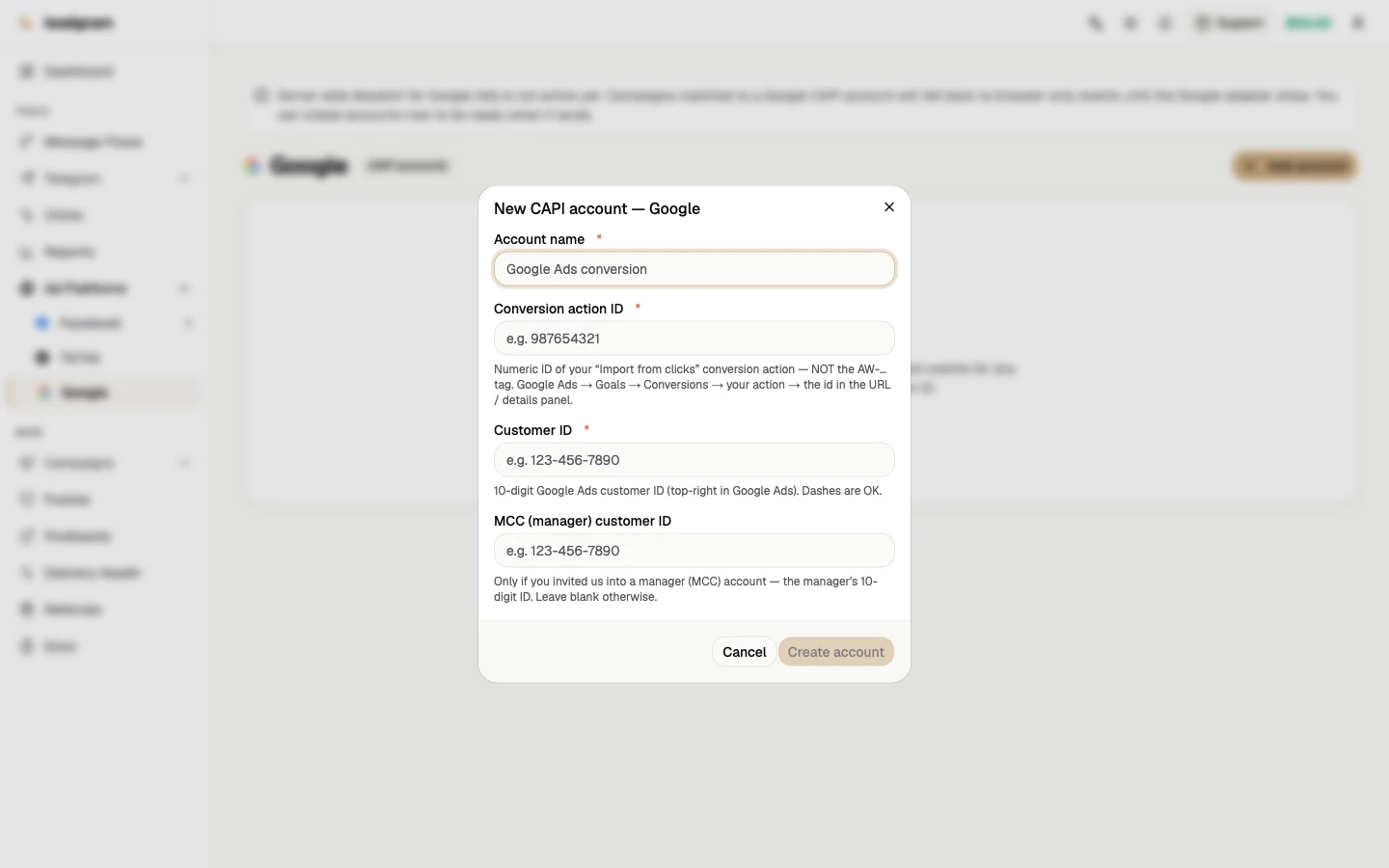
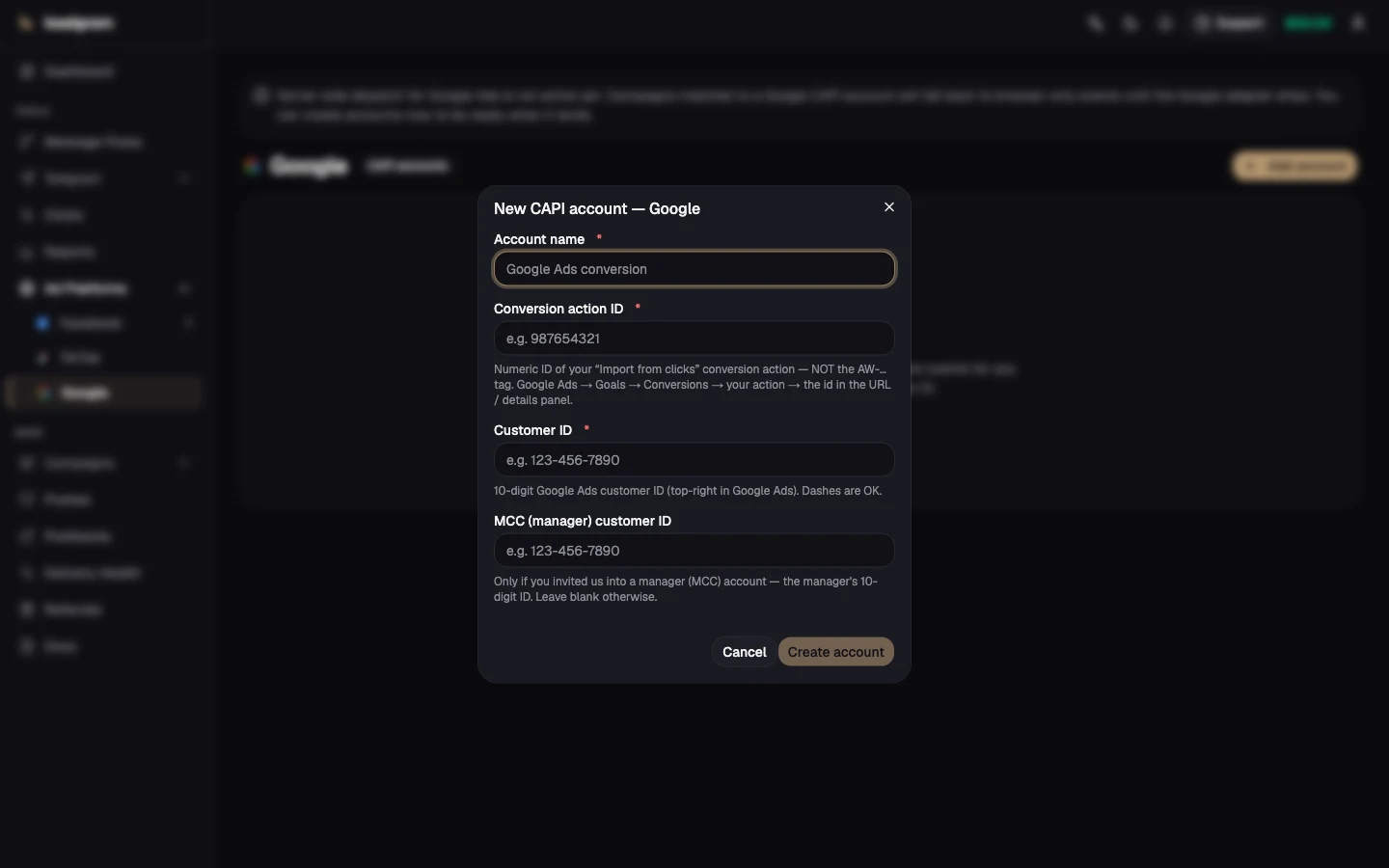
- On Google, click Add account.
- Conversion action ID: the numeric ID from step 3.
- Customer ID: your 10-digit Google Ads ID (top-right in Google Ads). Dashes are fine; Leadgram normalizes them.
- MCC (manager) customer ID: only if the invite went to a manager account, otherwise leave it blank.
There is no token field. That's by design.
Bind it to a campaign
In the campaign dialog on Campaigns, enter the same numeric conversion action ID in the Google field. The IDs need to match exactly: that's the join Leadgram uses to find the right credentials for a conversion. A live indicator under the field confirms the match while you type.
What gets sent
- Your tracking link captures
gclid,gbraidandwbraidautomatically; each conversion uploads exactly one of them (gclid wins when present). - The event's
payoutbecomesconversionValue(USD). - Conversion-grade events ship by default:
bot_start,channel_join,first_dm,lead,registration,deposit,ftd,purchase. The rest lands in the "Event not mapped" row of the skip block - rawclickandlanddeliberately, andjoin_request,miniapp_launch,subscription_renewed,subscription_cancelledandcustom_*because Google's mapping has no entry for them. That set is a default, not a ceiling: the campaign's Google event name field is a plain send gate, so any non-empty value there uploads every event type of that campaign instead. The value itself is never transmitted - Google Ads has no event names to receive it. Leave the field empty to keep the eight types above. - A deterministic
transactionIddeduplicates retries on Google's side.
Verify
Delivery Health shows the Google delivery within seconds of the event. Google's own reports lag behind that: gclid conversions typically appear after about 3 hours, gbraid/wbraid (iOS) can take up to 72 hours.
If the delivery count looks low, check the platform card's "Skipped (not sent)" block before assuming something's broken. It breaks down Today and 7-day skips by reason - no Google click ID (gclid), click expired, or event not mapped - so you can tell a real gap from a click that was never going to carry a gclid in the first place.
Common pitfalls
- Pasting
AW-123456789as the conversion ID. That's the tag, not the ID - use the bare number. - Invite sent but never accepted, or granted Read-only. Every upload gets a 403 until it's Standard and accepted.
- MCC mismatch: the invite went to the manager account but the MCC field is empty, or the reverse. Either way, that's a 403.
- Auto-tagging off: clicks arrive without
gclid, so Google skips them instead of failing them. The "Skipped (not sent)" block on Delivery Health will show it as "No Google click ID (gclid)". - Running Meta and Google on the same campaign: a click that only carries
fbclidskips on the Google side by design. That's not an error, just a click Google was never going to match, and it shows up in the same skip breakdown. - "Delivered but Google shows nothing yet." Usually just propagation delay - check again after 3 (or 72) hours.
- Conversions on clicks older than roughly 89 days are skipped - a day of slack under Google's 90-day gclid window, since Google would not match them anyway.